Healthcare
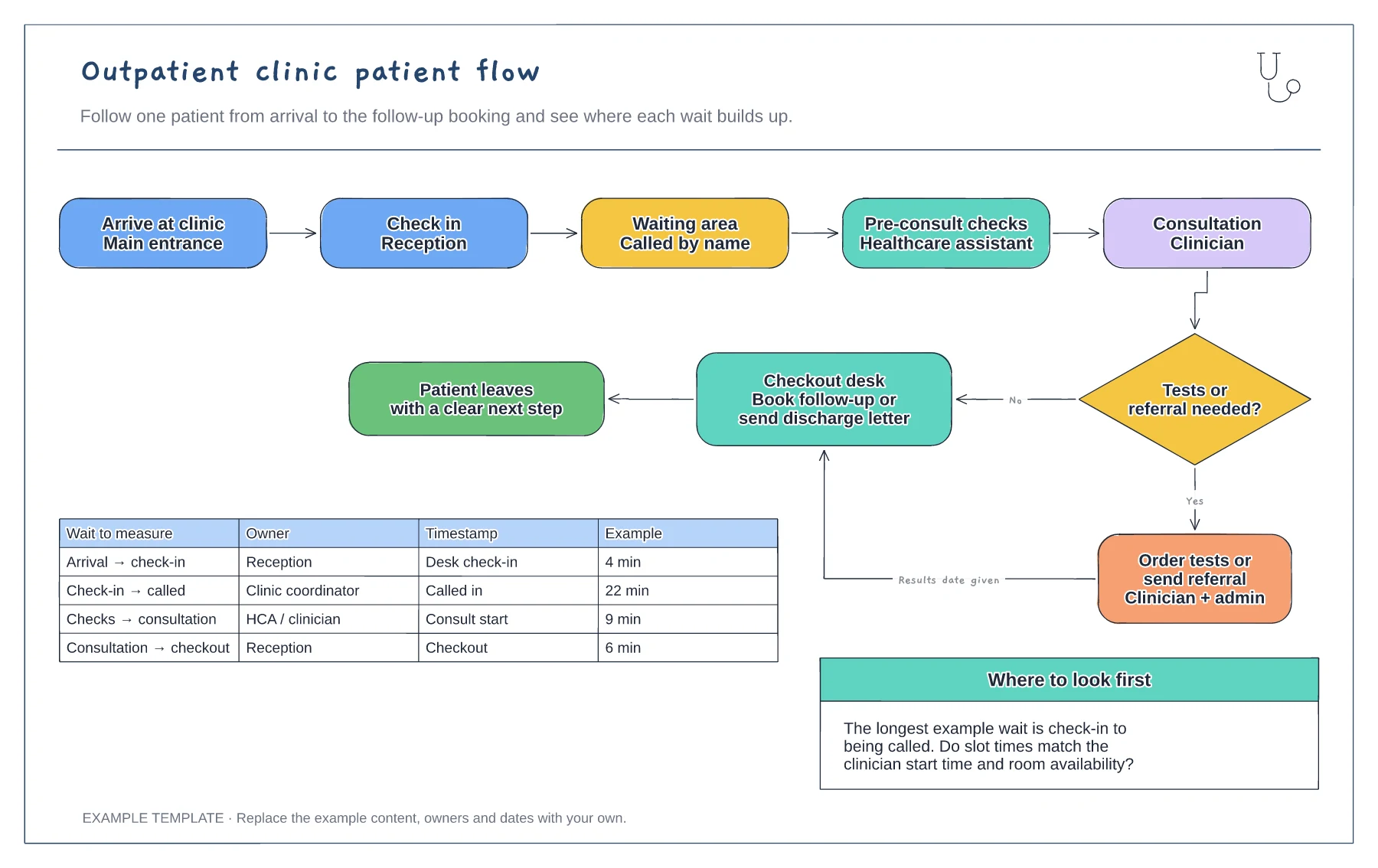
Outpatient clinic patient flow diagram template
Five steps from arrival to consultation · Tests or referral decision with checkout · Wait-time table with owners and timestamps
Preview and use template →An appointment workflow helps reception and clinic teams handle bookings the same way, including when a patient does not turn up. This example runs from the booking request through confirmation and a reminder text to cancellations, attendance and a DNA route that rebooks first-time misses and passes repeat misses to a clinician.
This is a planning example for process improvement, not clinical guidance. Follow your organisation's policies and clinical protocols.
No account needed · Opens as your own editable page
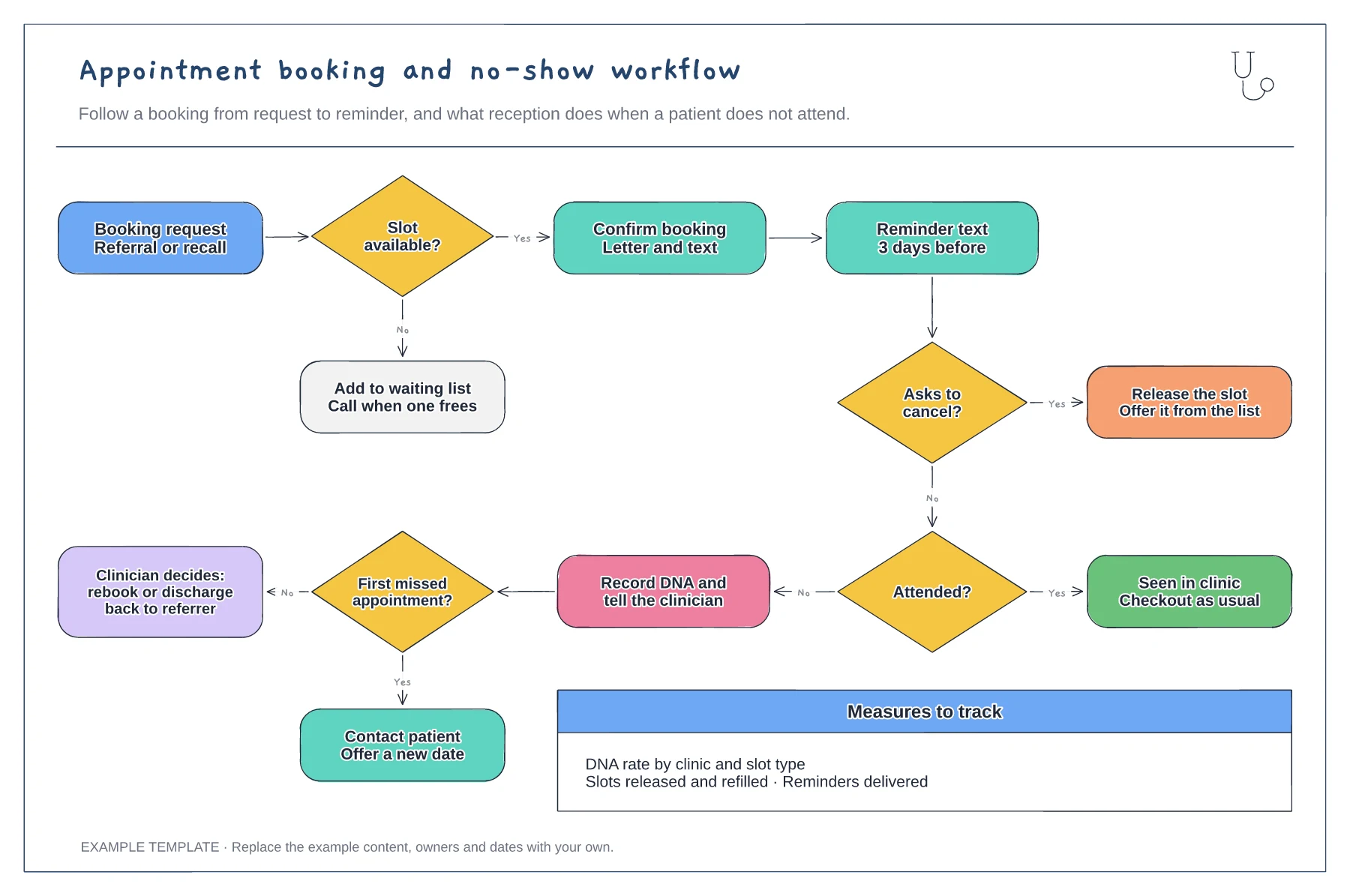
Change the reminder step to match your system, for example a text three days and one day before. Make it easy for patients to cancel from the reminder, because a released slot can go to someone on the list.
Replace the first-missed-appointment check with your organisation's DNA policy and who decides on discharge. Writing it down helps reception apply it the same way for every patient.
Use the measures panel to track the DNA rate and how many released slots are refilled. Looking at both shows whether reminders reduce wasted slots or just move them.
Yes. Edit the DNA branch so it rebooks, contacts the patient or discharges them back to the referrer, following your own access policy.
No. Open the template and edit it in your browser. Your work saves on this device. An account is optional if you want to sync your workspace.
Yes. Use Export in the editor to save a PNG, SVG or PDF, or download an editable .epicdraw backup.
Five steps from arrival to consultation · Tests or referral decision with checkout · Wait-time table with owners and timestamps
Preview and use template →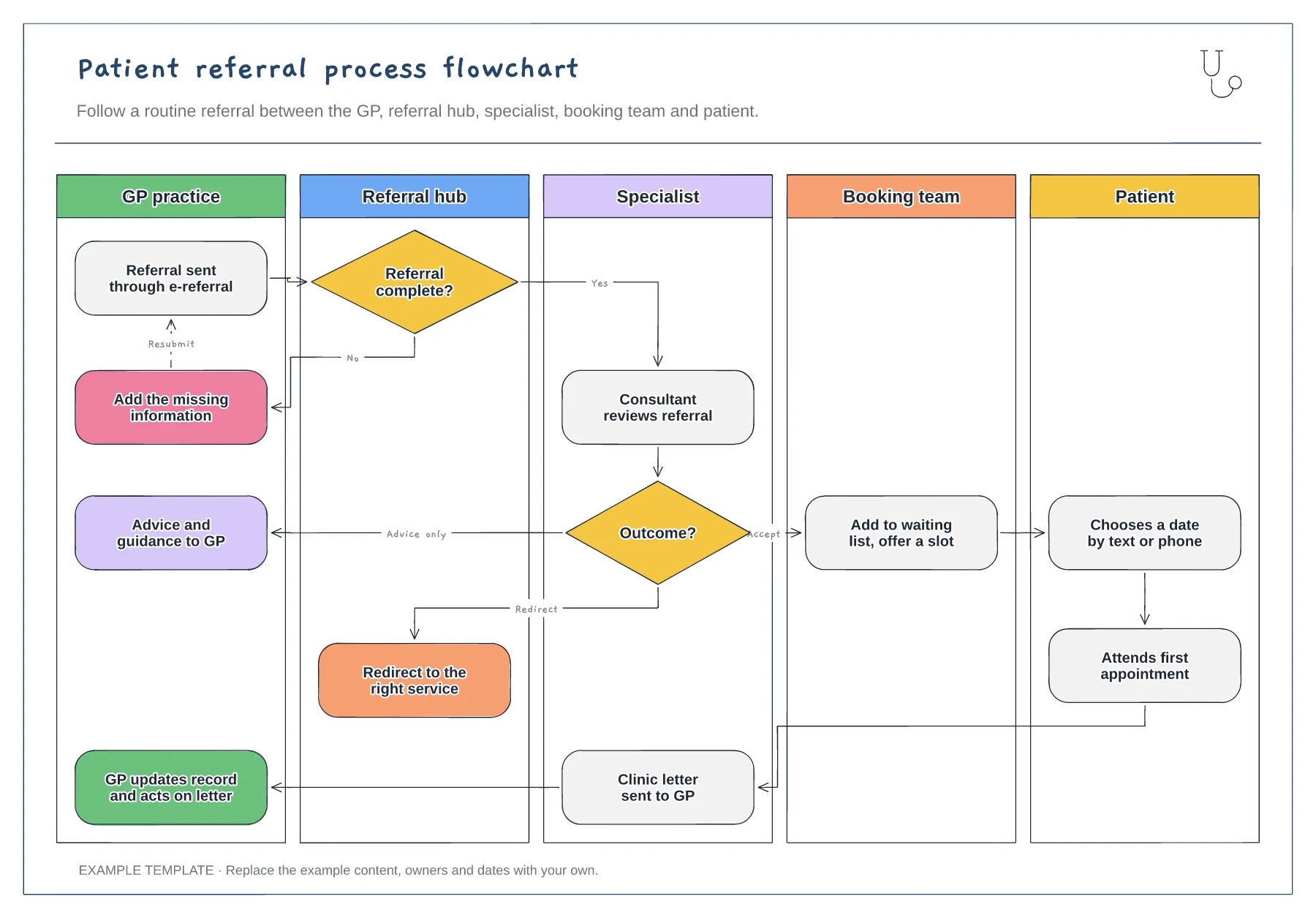
Five vertical swimlanes · Completeness check with resubmit loop · Accept, advice-only and redirect outcomes
Preview and use template →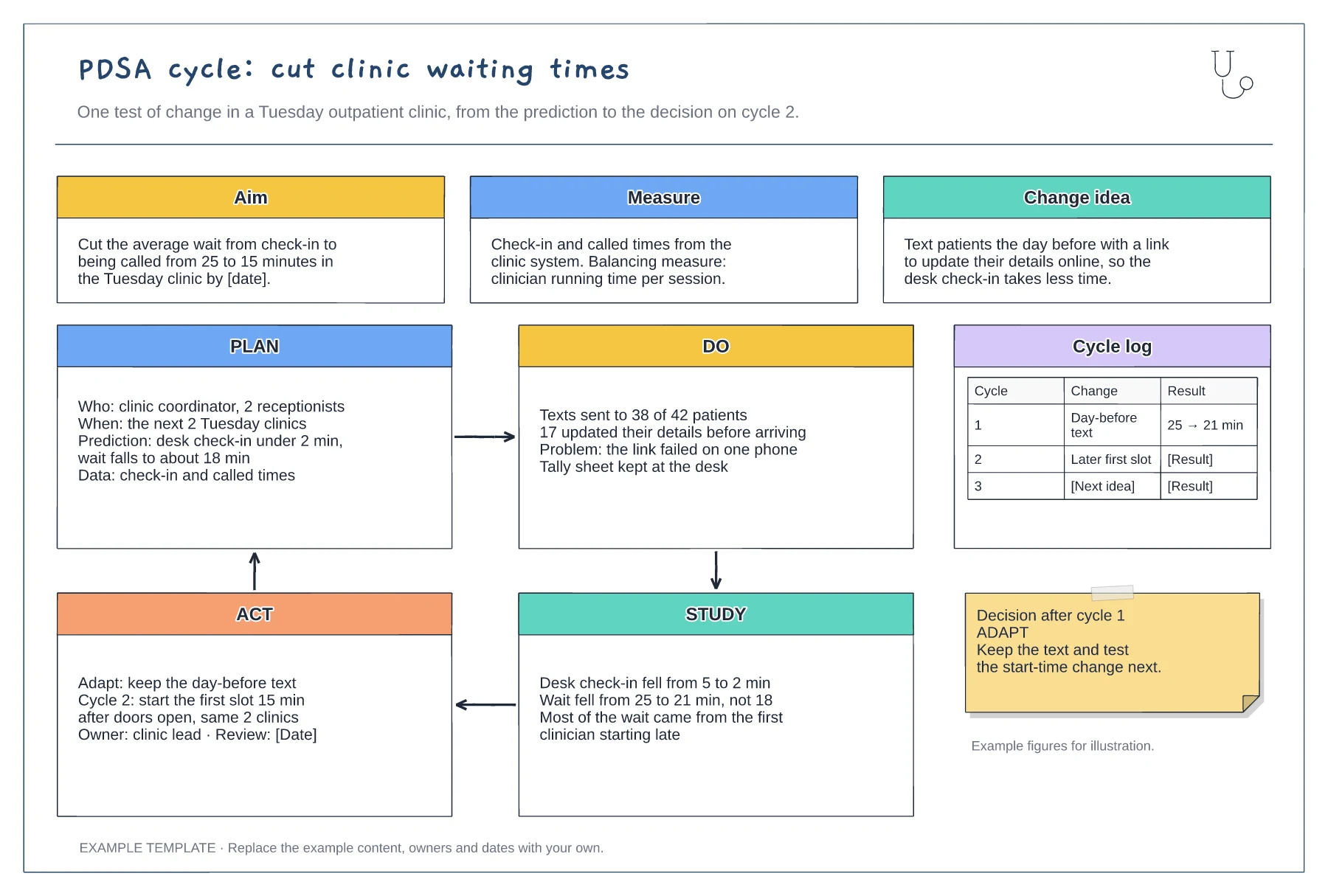
Aim, measure and change idea · Filled-in Plan, Do, Study and Act panels · Cycle log and decision note
Preview and use template →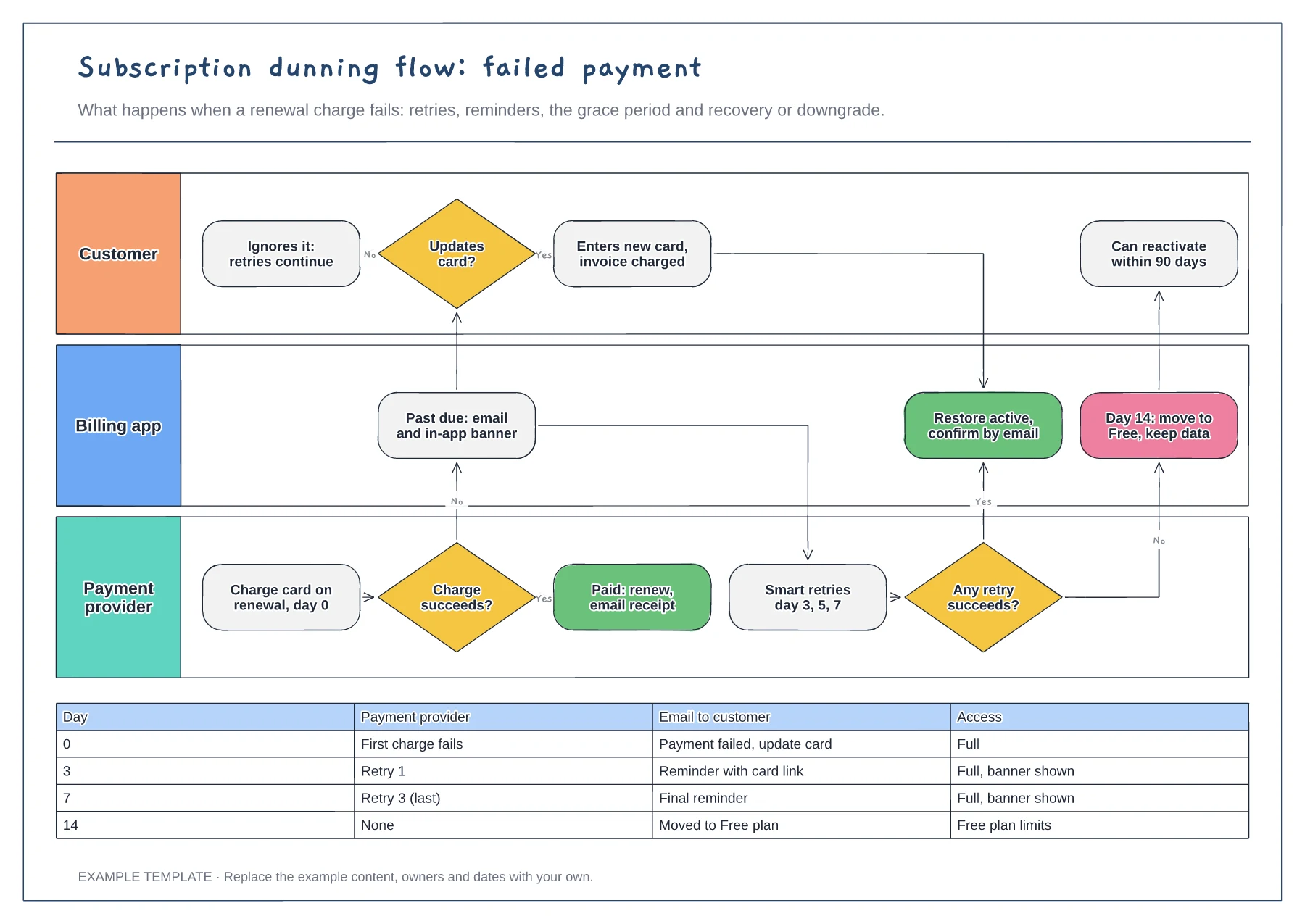
Lanes for customer, billing app and payment provider · Retry and reminder schedule by day · Recovery and downgrade outcomes
Preview and use template →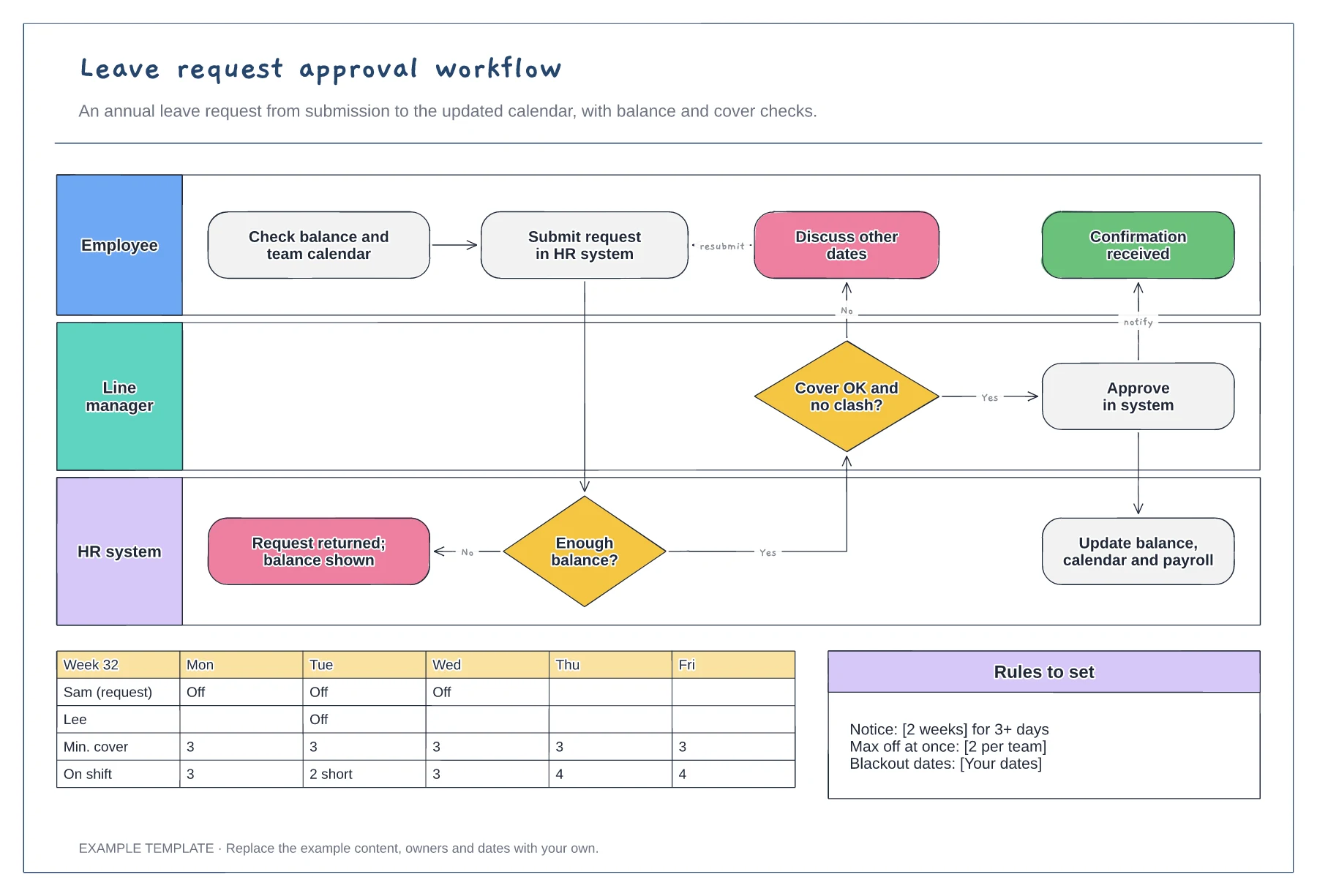
Employee, manager and HR system lanes · Balance and cover decisions · Team calendar and leave rules
Preview and use template →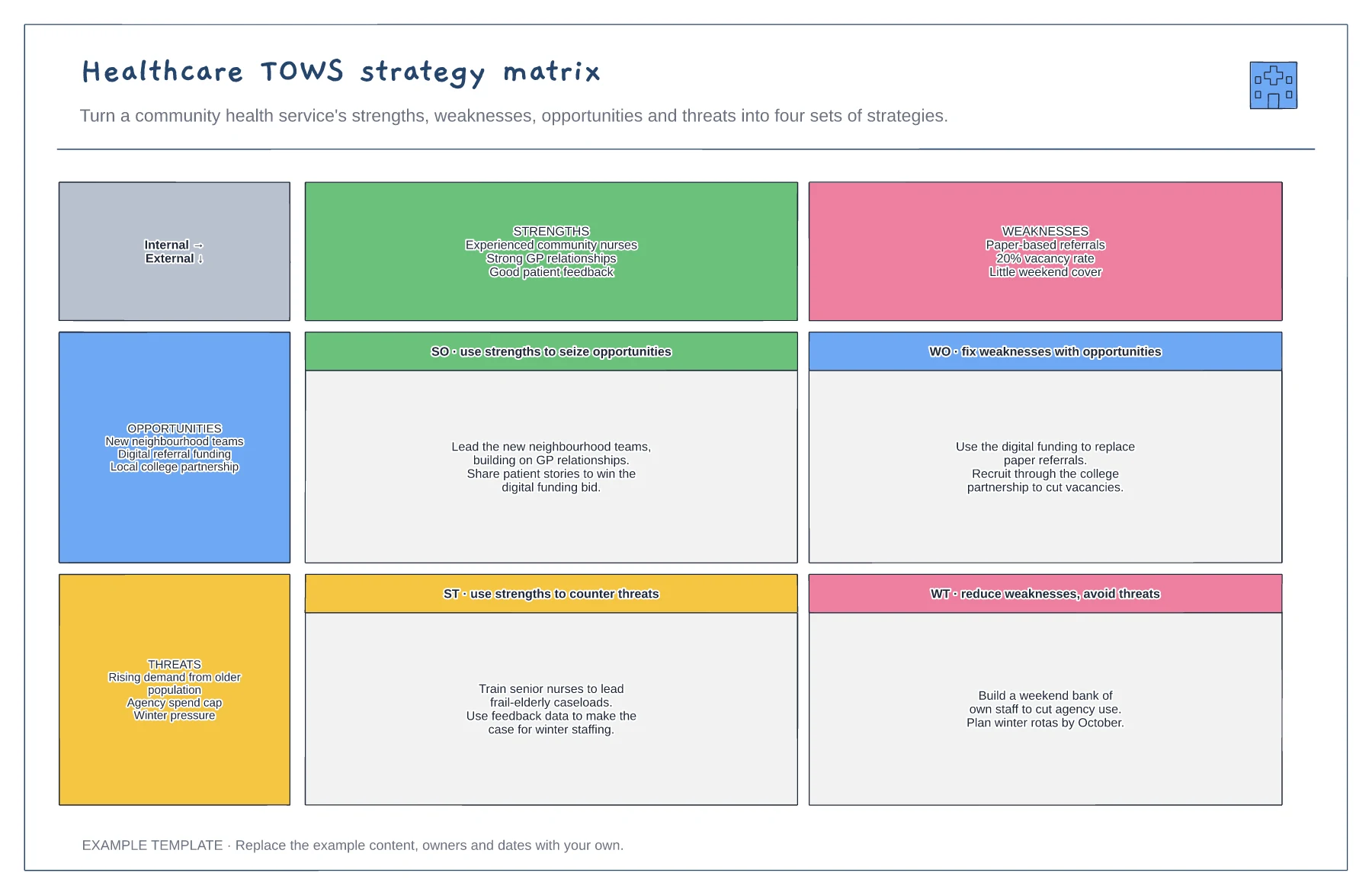
Strengths, weaknesses, opportunities and threats · Four sets of strategies · An example community health service
Preview and use template →