A good prompt gives an AI assistant what a colleague would need before drawing a diagram for you: what it's for, which facts are true, what form it should take and what you'll check afterwards. Ask for "a nice diagram of our process" and the assistant has to fill in all four itself, so you spend your time working out which parts it invented.
This guide gives you AI diagram prompt examples to adapt and a five-part worksheet for writing your own. You'll build one prompt for a booking flow, bring the draft into EpicDraw, check what was added to your facts and edit it. The aim is an editable starting point: shapes, text and connectors you can change, which a flat picture doesn't give you.
What a diagram prompt has to settle
Prompting guides from the companies that build these tools agree on the basics. Microsoft's prompt engineering guide advises being specific and leaving as little as possible to interpretation. Google's prompting strategies add constraints, the response format and context to that list.
Diagrams add a demand of their own. A paragraph can stay vague about what follows what, but a connector has to start at one shape and end at another. Every arrow is a claim about your process, so the prompt needs to name the steps and how they relate.
That gives you five parts to write down:
- Reader task: what the person reading the diagram must decide or do.
- Supplied facts: the steps and rules you know are true.
- Diagram format: the type, direction and shapes.
- Constraints: what to include, avoid and label.
- Review question: the first thing you'll check in the draft.
The last part is there because a careful prompt doesn't remove the need to check. Microsoft says plainly that you still need to validate what a model generates, and that a prompt which worked once may not work more widely. Writing the question first tells you what to look for.
Describe the decision the diagram supports
Imagine a fictional site that sells weekend workshops. You're a product manager, and your job is to get the team to agree the booking route before anyone designs the screens. The person booking has a different job: they want a place on a session they can attend. Keep those two apart, because the first decides what the diagram is for and the second decides what goes in it.
Here's the first attempt:
Make a nice diagram of our booking process.
That prompt doesn't say what the steps are, what the team needs to settle or whether "nice" means a flowchart or a poster. Add the reader task and it starts to narrow:
The team needs to agree the booking route before design starts.
Show what happens between choosing a workshop and deciding to book.
Now the diagram has a start, an end and a purpose. It still has no facts, so anything between those two points would be a guess. Anthropic's prompting guide suggests a useful test here: show the prompt to a colleague with little context and ask them to follow it. A colleague handed those two lines would ask what the steps are.
If you already have a one-page design brief, its goal and open questions are good raw material for this part.
Specify the structure and constraints
Add what you know. In the example, a person chooses a workshop, chooses a session, reviews the cost and decides. Sessions can fill up. Nobody has settled when payment is taken. The first four facts give the steps, the full session implies a decision with two exits, and the payment gap has to appear as a question so that nobody treats it as agreed.
Task: help the team agree the booking route before design starts.
Facts: a person chooses a workshop, chooses a session, reviews the
cost and decides whether to book. Sessions can fill up. When payment
is taken is still an open question.
Format: left-to-right flowchart. One question per diamond, with Yes
and No labels on the arrows.
Constraints: use editable shapes. Label any step I did not supply as
an assumption. Show unknowns as open questions.
Review: which assumptions did you add?
The constraint about assumptions does the most work. Microsoft's guide suggests giving a model an alternative path when it can't complete a task, such as replying "not found", which can help it avoid a false answer. Asking for the label ASSUMPTION is the diagram version of that: it gives the assistant somewhere honest to put a step you didn't supply. It won't catch everything, so the review still compares the draft with your facts.
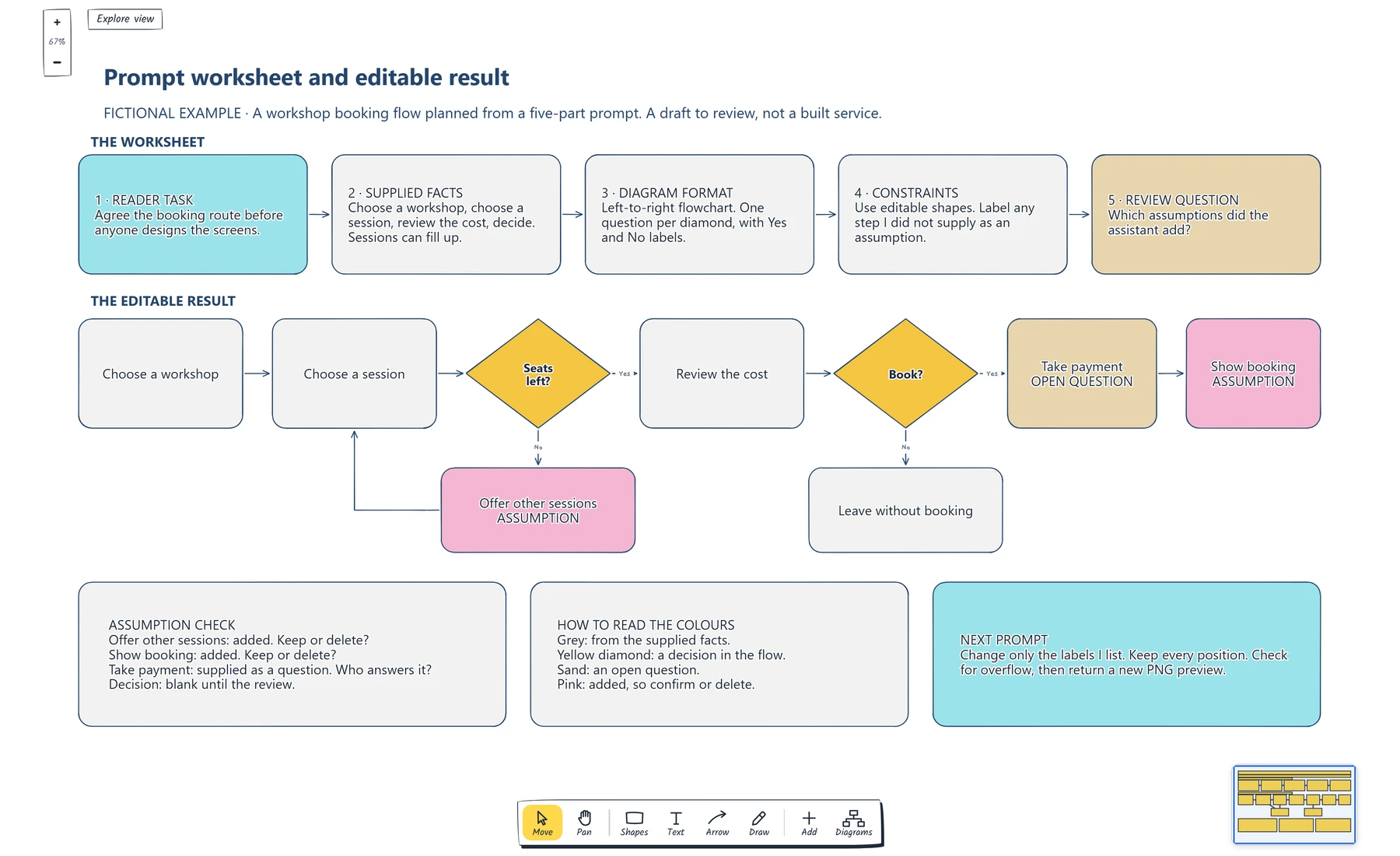
Read the worksheet, then the flow beneath it. Every grey step traces back to the supplied facts, and the two pink steps are the ones to confirm or delete.
The board above is our own worked example, built from these labels. Generated layouts vary between assistants and between runs, and an assistant may add different steps, so treat it as a model for reviewing a draft.
The same five parts work for other diagram types. These two are fictional as well, so swap in your own facts.
A mind map for sorting ideas:
Task: help the team sort ideas for a spring workshop programme.
Facts: the themes are pottery, printing and weaving. Each theme has
a beginner session and a family session.
Format: mind map with the programme in the centre and one branch per theme.
Constraints: use only these themes and sessions. Mark any idea you
add as an assumption.
Review: which branch has no session yet?
A sequence diagram for a system conversation:
Task: help a developer and a product manager agree what a booking does.
Facts: the visitor submits the form, the website asks the booking
service to hold a seat and the website shows the reply.
Format: sequence diagram with Visitor, Website and Booking service.
Constraints: show the session-full reply as well as the success
reply. Mark timeouts and retries as open questions.
Review: what happens if the booking service doesn't answer?
If you are not sure which shapes and exits your process needs, read how to make a flowchart people can actually follow before you write this part of the prompt.
If the ideas you want to sort are connected by relationships rather than grouped under branches, make a concept map with labelled links and ask for that format instead of a mind map.
Bring the draft into EpicDraw
You don't need an account for this route. In the editor, open More and choose Build from text, describe the diagram in the box under "Let an AI write it for you" and press Copy AI prompt. That copies your request along with instructions for EpicDraw's text format. Paste it into your assistant, then paste the reply into the Build box, where you'll see a preview.
Press Add to page to place the result beside what's already there. Start fresh clears the current page first, so keep that for a blank page.
If you'd rather type the structure yourself, the same box takes one chain per line, and a step ending in a question mark becomes a diamond:
Choose a workshop > Choose a session > Seats left?
Seats left? -yes-> Review the cost
Seats left? -no-> Offer other sessions
If your flow is close to a shop checkout, compare your draft with the ecommerce user flow template, which follows one shopper across screens and decisions and marks where people leave.
Inspect and edit the generated diagram
Start with your review question. Put the supplied facts beside the draft and trace each shape back to a line in the prompt. Anything you can't trace was added, whether or not the assistant labelled it.
In the example, two steps fail that test. Nobody decided the site would offer other sessions, and the facts never mentioned a confirmation screen. Either may be right, but someone has to say yes or delete it, and the assumption check card records that.
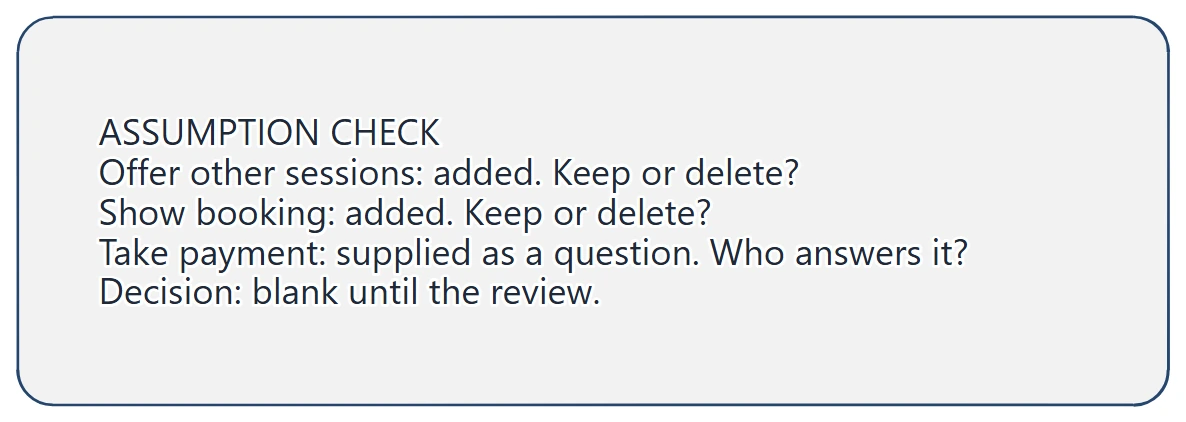
Each added step gets a keep or delete decision, and the payment question gets an owner. The decision line stays blank until the team has reviewed it.
Then read the structure. Does every diamond have two labelled exits? Does each No go somewhere? Has an open question quietly become a step? Tidy spacing tells you nothing about whether an arrow is right.
Fix small things by hand, since everything on the page is editable. Double-click a label to change it, drag shapes to rearrange them and delete what the team rejects. Go back to the assistant for larger changes, and say what must stay the same. Google's guide notes that prompts can take a few iterations, so a narrow follow-up is normal: name the one change, then list what to leave alone.
Change only the labels I list. Keep every position.
Rename "Show booking" to "Show confirmation email".
If the flow later needs screens, turn it into a wireflow and carry the agreed steps across.
If the booking route grows into a full payment journey, map the checkout flow before anyone treats the assumptions as agreed.
Review checklist
Copy this into your notes before you send the prompt:
Reader task:
Supplied facts:
Diagram format and direction:
Constraints and required labels:
Review question:

After the draft:
Steps that trace back to my facts:
Steps added, keep or delete:
Decisions missing an exit:
Open questions and who answers them:
Next change, and what must stay the same:
If you can't fill in the facts line, find out what happens first, or ask for a draft that marks those gaps as open questions.
Optional: create the example with an AI assistant
If you use an AI assistant that supports remote MCP with OAuth sign-in, it can build this board in your EpicDraw workspace. MCP is an open standard for connecting AI applications to external systems, and here it lets the assistant use EpicDraw's diagram tools.
This route needs a free EpicDraw account and cloud sync, and only synced pages are available remotely. Open More, choose Connect AI assistant and add https://epicdraw.app/mcp in your assistant. When EpicDraw asks you to approve the connection, tick the option to allow it to create and edit diagrams, because a read-only connection can't create this page. The MCP connection guide walks through each step.
Paste this prompt into the connected assistant:
Using the connected EpicDraw MCP server, create a new editable page named "Prompt worksheet and editable result". Leave existing pages unchanged.

Create a prompt worksheet and a left-to-right booking flow for a fictional workshop site. The worksheet should show reader task, supplied facts, diagram format, constraints and review question. The supplied steps are choose a workshop, choose a session, review the cost and decide whether to book. Sessions can fill up, so add a Yes and No decision for seats. Show taking payment as an open question. Put any step I did not supply in its own colour, labelled ASSUMPTION, and add an assumption check card with the decision left blank.

Use editable shapes, text and connectors. Label the example as fictional and mark unknowns as open questions. This is a visual planning draft. Check for overlapping objects and overflowing labels, then return a PNG preview and the private editor link. Leave the result as a draft for me to review.
Open the returned private editor link while signed in. The layout will vary and may differ from the screenshot, and how the prompt is followed depends on your assistant, so run the same review as before. EpicDraw's checking tool looks for overlaps, estimated text overflow and objects outside a frame. It can't tell you whether a step is true. The PNG preview can also use a different font from the editor, so judge the final fit in the editor.
For follow-up edits, EpicDraw keeps positions unless the assistant is asked to rearrange, saves the previous page before each assistant edit and keeps the ten most recent versions across your account. You can ask the assistant to list them and restore one. One format difference: the MCP text input takes plain chains like Start > Review? > Done, without Mermaid or arrow labels, so labelled branches need structured shapes and connectors.
The result is a planning draft. It doesn't show that the booking route works, and it doesn't replace the team's decision on each assumption.
Takeaways
- Write down the reader task, supplied facts, diagram format, constraints and review question before you prompt.
- Name the steps and how they connect, because every arrow in the draft is a claim about your process.
- Ask for added steps to be labelled, then trace each shape back to your facts anyway.
- Expect layouts to vary, and check them in the editor.
- Make the next change with a narrow prompt that says what must stay the same.
Keep your next draft close
Create a free account to save your pages in the cloud and use them across devices.
Create a free accountYou can keep drawing without an account.