
Asynchronous design feedback lets colleagues review a design at different times. Give them the task, a specific question and a reply deadline, then keep the discussion beside the work. Finish by recording what was decided, why and who will act.
For a distributed product team, the review needs to make sense without a live explanation. This guide uses a booking screen to show how to collect anchored comments in EpicDraw and keep a decision record. Adapt the editable board and request below to your work.
Agree what the review needs to answer
Choose a question that fits the work. An early screen can support discussion about missing information and the next action. It cannot establish whether an unbuilt booking service works.
Write the question beside the design, along with its version and boundaries. Name a review owner to gather responses and a decision maker for questions the team cannot settle. These may be different people.
Agree a response window that gives the invited reviewers time during their working hours. Include the date, time and time zone. Silence at the deadline leaves a missing response to follow up; it does not establish approval.
Atlassian's working agreements guide recommends agreeing communication channels, roles, timing and escalation. Apply those choices to this review so people know where to contribute and what happens if discussion stalls.
Prepare the booking screen and its context
The worked example is a fictional beginner pottery workshop. Its visitor wants to choose a suitable session and understand the cost before reserving. The team's question is: "Are the date, cost and next action clear?"
The sketch includes an illustrative Saturday 10:00 slot, £35 per person and "Choose a place", marked A. The studio address, cancellation terms and whether the action reserves a place or continues to payment are unconfirmed.
Open the editable starter near the top of the page. It adds a new page while preserving your existing drawings. Alternatively, download the worked example and open it with Import in EpicDraw. Double-click a label to edit the task, scope or screen.
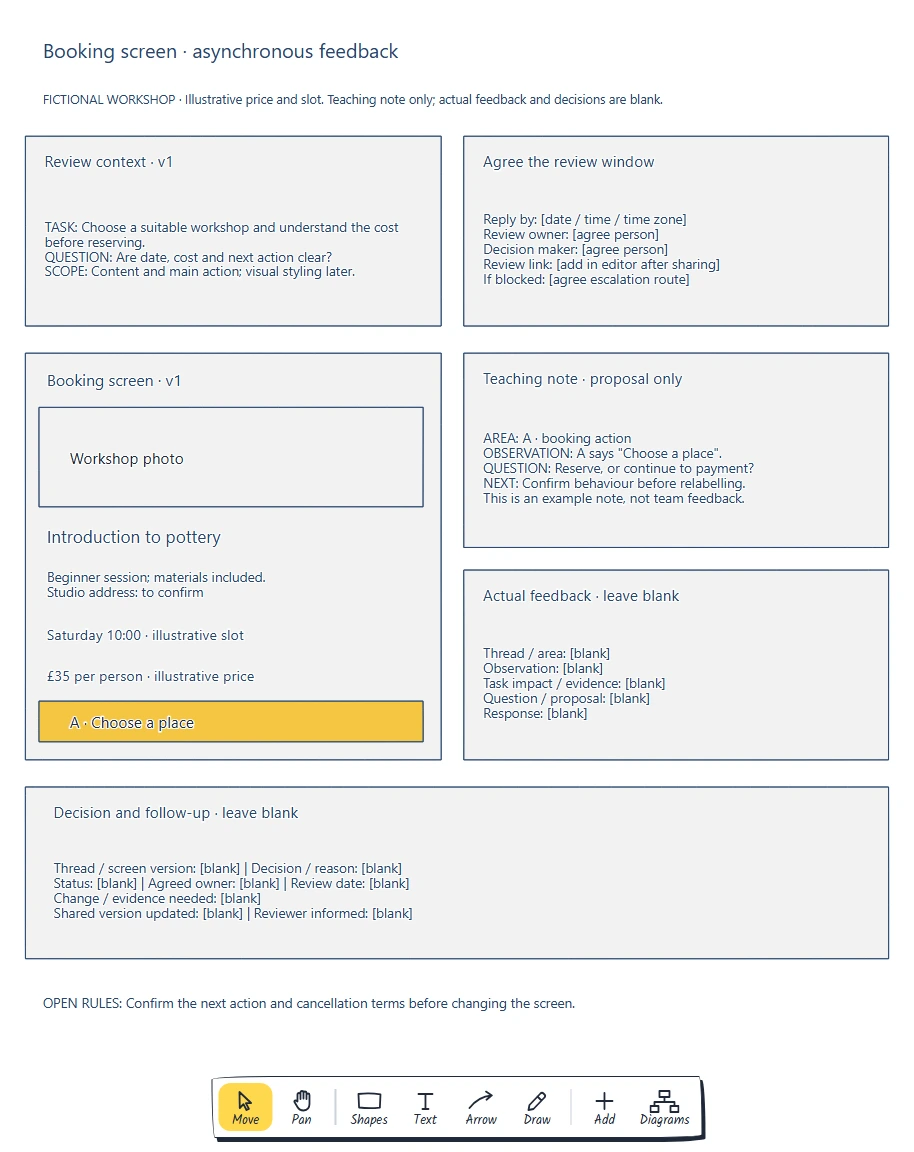
The context stays beside the screen so reviewers can begin without a presentation. The labelled teaching note demonstrates a question; actual feedback, owners and decisions remain blank.
Replace the task and question, then agree the response window and roles. Add the share link after creating it in the editor.
Create a review link for this version
Sharing needs a free EpicDraw account. Sign in, open the page and press Share. Under "How should people's changes be saved?", choose Review and comment, then press Create link. This mode lets reviewers comment while keeping the drawing fixed.
Reviewers need no account. They enter their own display names, which are not verified identities. Everyone who can open the link can see its comments; add a link password in Share when appropriate.
The link shows a snapshot of the page. Editing your original does not refresh it automatically. Keep a visible version label so the request and comments refer to the same design. The sharing and comments help explains the controls.
Send a request like this through your team's agreed channel:
Please review: [page / version / review link]
User task: [what the person needs to do]
Question: [the decision this review should inform]
In scope: [content / behaviour / other]
Outside this review: [what can wait]
Reply by: [date / time / time zone]
Review owner: [agreed person]
Decision maker: [agreed person]
How to respond: pin a comment to the relevant area.
Describe what you see, how it affects the task,
and the question or change you suggest.
If you cannot review, please tell the review owner.
Ask reviewers to anchor observations
A reviewer opens the link, presses Comments and enters a display name. Choose canvas position, click a shape or empty paper, write the feedback and press Post comment. A numbered pin anchors the thread to that part of the drawing.
Ask for one concern per thread, with enough explanation for someone reading later. "This is confusing" gives the designer little to work with. A teaching example for area A is:
The action says "Choose a place". Does this reserve a place or continue to payment? I would confirm the behaviour before choosing a more specific label.
The label is visible evidence. The question identifies an unknown; it does not show that a real visitor misunderstood the screen. Keep colleagues' interpretations separate from findings from user research.
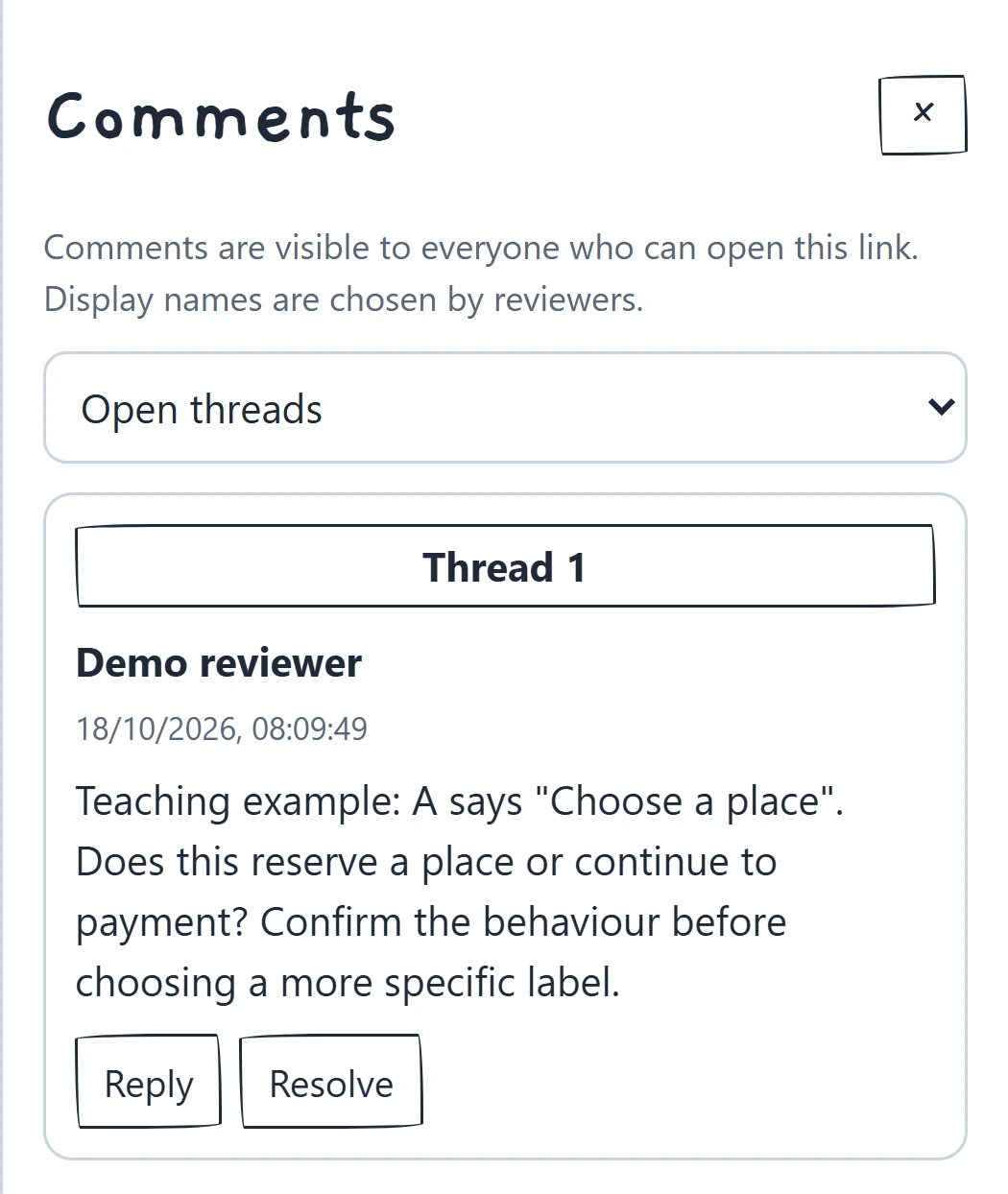
This local demonstration pins a question to the actual action shape. The thread is an example of how to ask; it is not feedback collected from a customer or team.
Use Reply to continue the same discussion. Include useful choices to retain: a reviewer might explain why the date and price should stay beside the action.
Turn the discussion into a decision record
The review owner checks the comments against the original question. Ask for clarification where reasoning is missing, and record unrelated suggestions separately so they can be considered at the appropriate stage.
For the action-label question, the next step may be to confirm the booking behaviour with the responsible product owner. Keep the decision open until that answer exists. If written replies reveal a fundamental disagreement, arrange a focused conversation and bring its outcome back to the record.
For each thread, capture:
Thread / screen version / area:
Observation and task impact:
Decision or question still open:
Reason / supporting evidence:
Status: investigate / change agreed / keep / defer
Next action and expected output:
Agreed owner / review date:
Change made / shared version updated:
Reviewer informed:
An asynchronous design feedback template needs a reason as well as a status. Explain what would trigger reconsideration of deferred work, and leave assignees blank until someone accepts it.
As the page owner, open More, then Comments to read and reply. The owner or the person who started a thread can Resolve it. Record the disposition before resolving; an investigation can remain outstanding after the discussion has been summarised. Resolving a thread does not complete its follow-up task. The Resolved threads filter lets you find and reopen it.
If a live discussion is needed, use the design critique guide to keep the conversation on one question and leave with agreed follow-up.
Show reviewers what changed
After editing your original, open Share and press Update shared copy. Comments remain when you update it. Pins follow their original shapes; if a shape is removed, its thread retains the saved canvas position.
Summarise the change and reason, and explain suggestions you kept open or did not pursue. Nielsen Norman Group's follow-up guidance recommends connecting feedback to subsequent changes and explaining decisions about suggestions not taken forward.
Keep unresolved questions visible. If the label changes after booking behaviour is confirmed, name that rule and its source in the update.
Comments are stored with the share link, separately from drawing exports and page backups. Keep the agreed decision summary in the board or your team's project record if it needs to travel with an editable export.
Review checklist
Use this asynchronous design feedback checklist before closing the review:
- Does the request name the task, version, question and scope?
- Have reviewers agreed a response window with a time zone?
- Can each concern be traced to a screen area and its effect on the task?
- Are interpretations, evidence and open rules distinguishable?
- Does each decision have a reason, with an agreed owner for follow-up?
- Has the shared copy been updated and the outcome explained?
- Can someone recover the decision without relying on a chat message or resolved thread alone?
Optional: create the board with an AI assistant
MCP connects a compatible AI assistant to EpicDraw's diagram tools. This route needs a free EpicDraw account, cloud sync and a remote MCP assistant with OAuth sign-in.
Open More, choose Connect AI assistant and add https://epicdraw.app/mcp in your assistant. Approve permission to create and edit diagrams. The MCP connection guide explains the setup.
Paste this prompt into the connected assistant:
Using the connected EpicDraw MCP server, create a new editable page named "Feedback board with owners and resolutions". Leave existing pages unchanged.

Create a feedback board for a fictional beginner pottery booking screen. Include the task "Choose a suitable workshop and understand the cost before reserving" and question "Are date, cost and next action clear?". Mark content and main action in scope, with visual styling later. Add a blank review window for an agreed date/time/time zone, review owner, decision maker, human-provided share link and escalation route. Sketch "Introduction to pottery", beginner session with materials included, a workshop photo placeholder, Saturday 10:00 and £35 per person marked illustrative, and "Choose a place" labelled A. Keep the studio address, cancellation terms and whether A reserves or continues to payment unconfirmed. Add a labelled teaching note: A says "Choose a place"; ask whether it reserves or continues to payment; propose confirming behaviour before relabelling. Mark this proposal only, not actual team feedback. Leave actual feedback blank, including thread/area, observation, task impact/evidence, question/proposal and response. Leave the decision record blank, including thread/screen version, decision/reason, status, agreed owner, review date, change/evidence needed, shared version updated and reviewer informed. Do not create or publish a share link; I will set up sharing in the editor.

Use editable shapes and text. Label the example as fictional and mark unknowns as open questions. This is a visual planning draft. Check for overlapping objects and overflowing labels, then return a PNG preview and the private editor link. Leave the result as a draft for me to review.
Inspect the PNG and open the private editor link while signed in. Layouts vary, so check the context, teaching label and blank actual feedback and decision fields. The assistant creates an editable planning board. Set up sharing yourself in the editor; the prompt does not publish a review link, gather comments or make team decisions.
Takeaways
- Put enough context beside the design for someone to review it independently.
- Agree where feedback belongs, when it is due and who makes the decision.
- Anchor observations to the work and explain their effect on the task.
- Record the reason and next action before treating a discussion as handled.
- Update the shared snapshot and tell reviewers what changed and why.
Keep your next draft close
Create a free account to save your pages in the cloud and use them across devices.
Create a free accountYou can keep drawing without an account.