
A low-fidelity wireframe is a rough layout that shows what belongs on a screen and where someone goes next. Start by writing one user task, place the information needed for that task, then add a note about the decision you want reviewed. You can use the booking example below as your first draft.
If you already have an idea in mind, replace the workshop name and booking details in the starter. Keep the layout rough while you check whether the information is in the right order.
Give the sketch a job
"Design a booking page" leaves plenty of room for a convincing picture and an unhelpful review. A more useful task is: "Help someone choose a pottery workshop and understand the cost before reserving a place."
That sentence tells you what to put on the page. The visitor needs a workshop name, a date, a location, a price and a way to choose a place. It also gives your reviewer a task to walk through.
Write the task in the margin of the wireframe. Add a review question beneath it: "Is anything missing that would stop you choosing this workshop?" Your teammate can now respond to the sketch with a specific decision in mind.
The example in this guide is a fictional pottery workshop. Its price, availability and content are illustrative. You should replace them with your own information before using the template for a real project.
A worked booking-page example
The sketch puts the workshop description on the left and the booking choices on the right. It keeps the date, price and action together so a reviewer can consider the booking decision in one place.
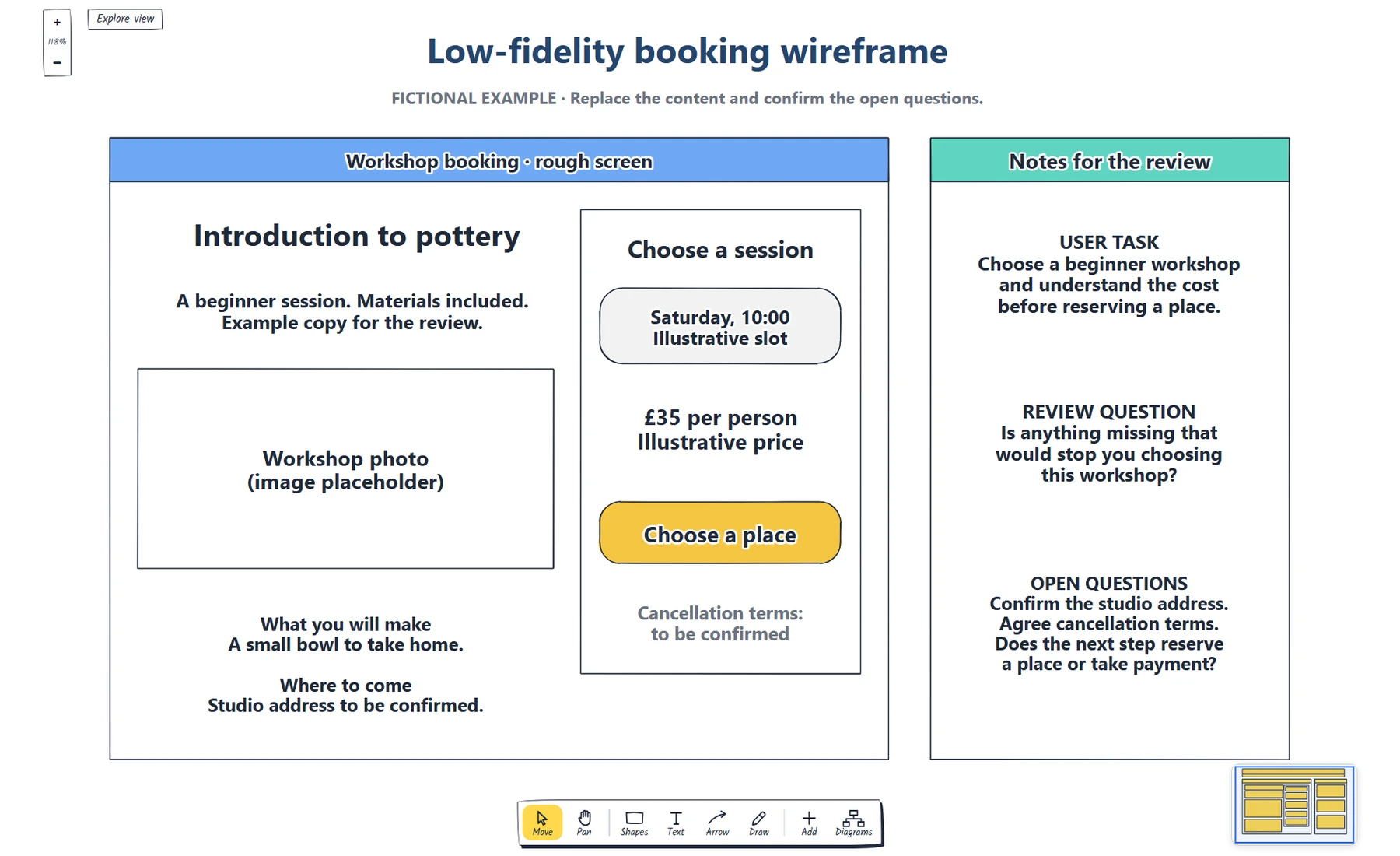
The complete worked example, captured from the EpicDraw editor. The workshop and all booking details are fictional.
Here is what each part needs to answer:
| Part of the sketch | Question it should answer | Example content |
|---|---|---|
| Workshop title | What am I booking? | Introduction to pottery |
| Short description | Does this suit me? | A beginner session; materials included |
| Location | Can I get there? | Studio address to be confirmed |
| Date choice | When can I attend? | Saturday, 10:00; illustrative slot |
| Price | What will I pay? | £35 per person; illustrative price |
| Main action | What happens next? | Choose a place |
| Supporting note | What else might affect my decision? | Cancellation terms to be confirmed |
There are deliberately unresolved details. The address needs confirmation, and the team still needs to agree the cancellation terms. Those notes make the gaps visible. A placeholder should help a reviewer spot unfinished work; it should not look like an approved policy.
Build the layout in EpicDraw
Open the editable starter near the top of this page. It creates a fresh page in your workspace, leaving your existing drawings in place. You can also download the worked example and use the app's Import option to open the editable file.
Begin with the page title and the main action. Double-click a label to edit it. Replace the example task in the margin with the task your own visitor needs to complete. If you are drawing a lesson booking page, for example, "Choose a place" might become "Choose a lesson time".
Then change the content blocks. Use recognisable words rather than filler text. "Introduction to pottery" gives a reviewer something to interpret. "Heading goes here" tells them only that you intend to add a heading.
Move the shapes to test the order. Put information close to the decision it supports. In this example, the price sits beside the date choice and booking action. If the location is essential to choosing a slot, try placing it there too. The sketch lets you discuss that arrangement before you commit to a detailed design.
Finally, add notes where the drawing could be misunderstood. Label an image box "Workshop photo". Mark an unknown address as an open question. State whether the action leads to a payment screen or simply reserves a place. The wireframe itself does not implement a booking service.
Create the example with an AI assistant
If you use an AI assistant that supports remote MCP with OAuth sign-in, you can ask it to create this booking sketch in your EpicDraw workspace. MCP is the connection that lets the assistant use EpicDraw's diagram tools.
You need a free EpicDraw account and cloud sync for this route. Open More, choose Connect AI assistant and add https://epicdraw.app/mcp in your assistant. During EpicDraw's connection approval, allow it to create and edit diagrams. The MCP connection guide walks through those steps.
Paste this prompt into the connected assistant:
Using the connected EpicDraw MCP server, create a new editable page named "Annotated booking wireframe and blank starter". Leave existing pages unchanged.

Sketch a desktop booking screen for a fictional beginner pottery workshop. Put the workshop information on the left and booking choices on the right. Include "Introduction to pottery", "A beginner session. Materials included.", a "Workshop photo" placeholder, "Studio address to be confirmed", "Saturday, 10:00 (illustrative slot)", "£35 per person (illustrative price)", a "Choose a place" action and "Cancellation terms to be confirmed". Add a separate notes area with the user task "Choose a beginner workshop and understand the cost before reserving a place", the question "Is anything missing that would stop you choosing this workshop?", and an open question about whether the next step reserves a place or takes payment. Use a white background, a rough layout and a yellow main action.

Use editable shapes, text and connectors. Label the example as fictional and mark unknowns as open questions. This is a visual planning draft. Check for overlapping objects and overflowing labels, then return a PNG preview and the private editor link. Leave the result as a draft for me to review.
Open the returned private editor link while signed in, then inspect the labels and open questions. The assistant's layout may differ from the screenshot. Check the date, price and next action before adapting it to your own workshop. This creates a wireframe; it does not build a booking service.
Use enough detail to expose a problem
You can leave photographs and decoration out of an early sketch. You still need content that helps the reviewer judge the task.
For a date selector, show a plausible option. For a price, show the unit as well as the number. For a button, write what the person will do. These small choices can reveal questions that an empty rectangle would hide.
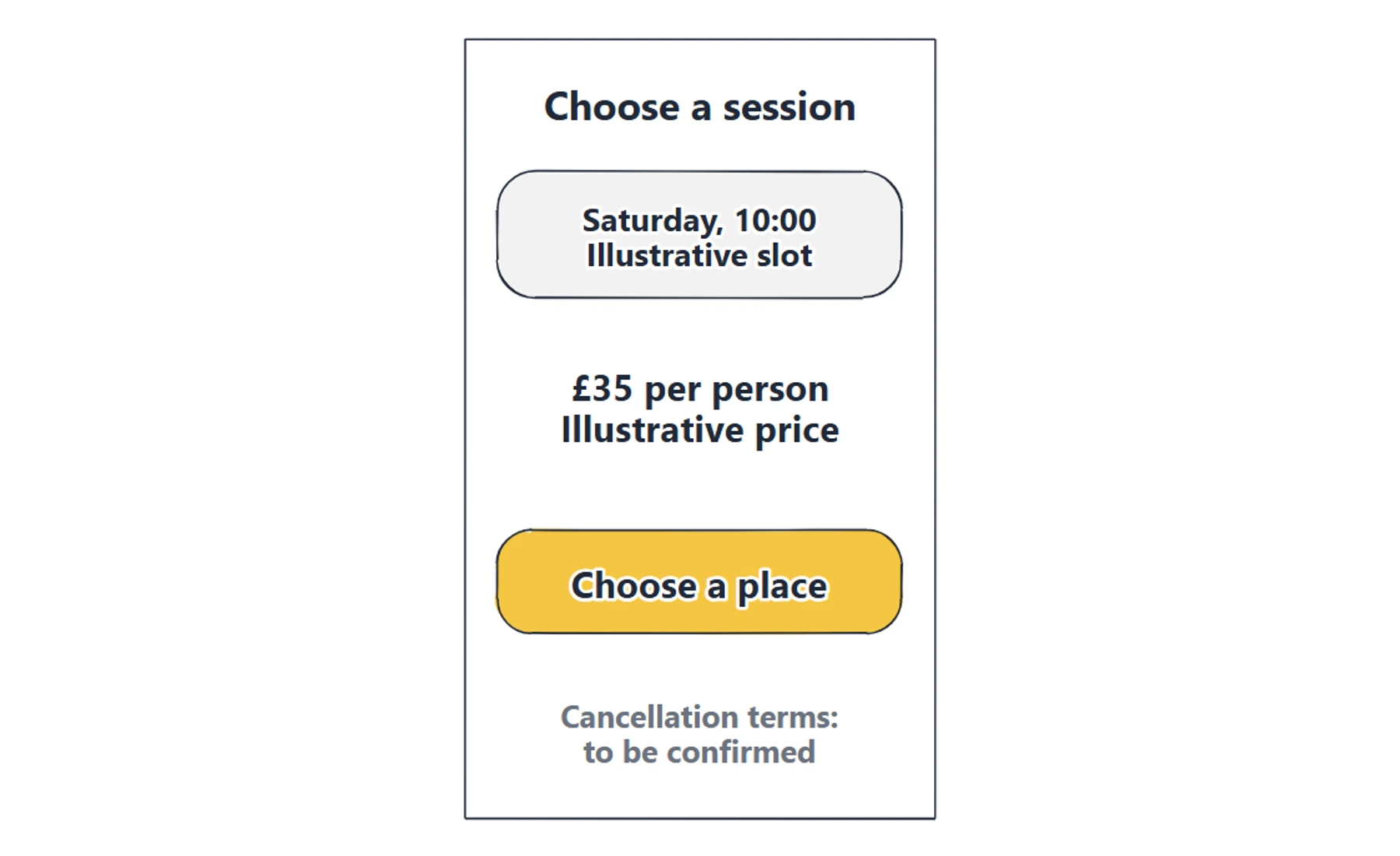
A closer look at the booking decision. Labels explain the intended content; notes identify what the team still needs to decide.
A useful wireframe has a clear stopping point. Once someone can follow the intended task and identify the missing information, bring it to a review. You can refine the sketch after that conversation.
Review it with one realistic task
Ask your reviewer to imagine they want to attend a beginner workshop. Give them the task, then let them describe what they would look for and do. Avoid explaining every rectangle before they have had a chance to read it.
Record their questions beside the relevant part of the drawing. "Does the price include materials?" belongs near the price. "Can I change the date later?" belongs near the date choice or supporting terms. A question attached to the layout is easier to act on than a general comment in a separate message.
Some comments will require a content decision. Others will suggest a layout change. Keep that distinction visible. Moving the cancellation note cannot answer an unresolved cancellation policy.
For feedback from a colleague who cannot attend a meeting, use EpicDraw's review-and-comment sharing option. Sharing requires an account. Include the task and review question in the page so they have the same context as a live reviewer.
If the review keeps returning to fonts and colours, read why hand-drawn wireframes get better feedback for ways to keep the conversation on the page structure.
Know when a single screen is insufficient
A wireframe can show the content and arrangement of a page. It leaves interaction questions open unless you annotate them or add the next state.
If the team needs to discuss what happens after choosing a date, draw the following state and connect it with an arrow. Nielsen Norman Group's explanation of wireflows describes this combination of screen layouts and flow connections. It is useful when the sequence or changing screen content is part of the question.
For a wider introduction to the layout stage, Figma's wireframing guide provides context. The worked booking sketch here is an original example you can adapt directly.
Review checklist
Copy this into your next review:
User task:
Review question:
Information needed before acting:
Main action and what happens next:
Unknown content or behaviour:
Questions raised in the review:
Next change, owner and review date:
Before sharing, check that every visible placeholder has a meaning, each illustrative number is clearly marked, and the review question appears on the page. Ask someone to describe the next action in their own words. If they cannot, adjust the label or surrounding information.
Takeaways
- Give your wireframe a specific user task and a review question.
- Use recognisable content to reveal layout and information gaps.
- Put unresolved details on the drawing, where reviewers can see them.
- Add another screen or state when the interaction needs discussion.
Open the starter, change the workshop details to your own task, and put the first question you need answered in the margin.
Keep your next draft close
Create a free account to save your pages in the cloud and use them across devices.
Create a free accountYou can keep drawing without an account.